¶ Create a Close Out Form
Go to https://researchportal.gsu.edu and log in with your Campus ID and Password and select the "Sign in" button:
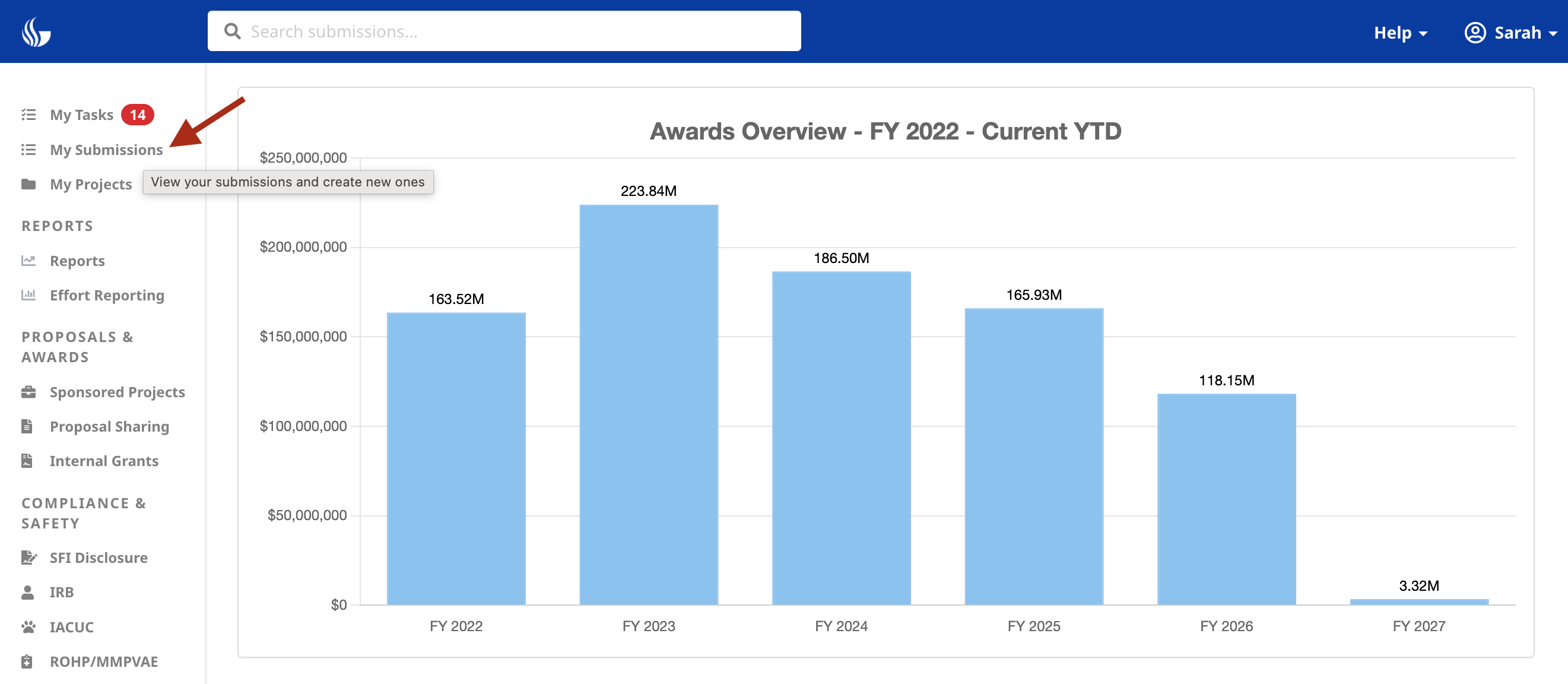
In the left-side menu select "My Submissions":
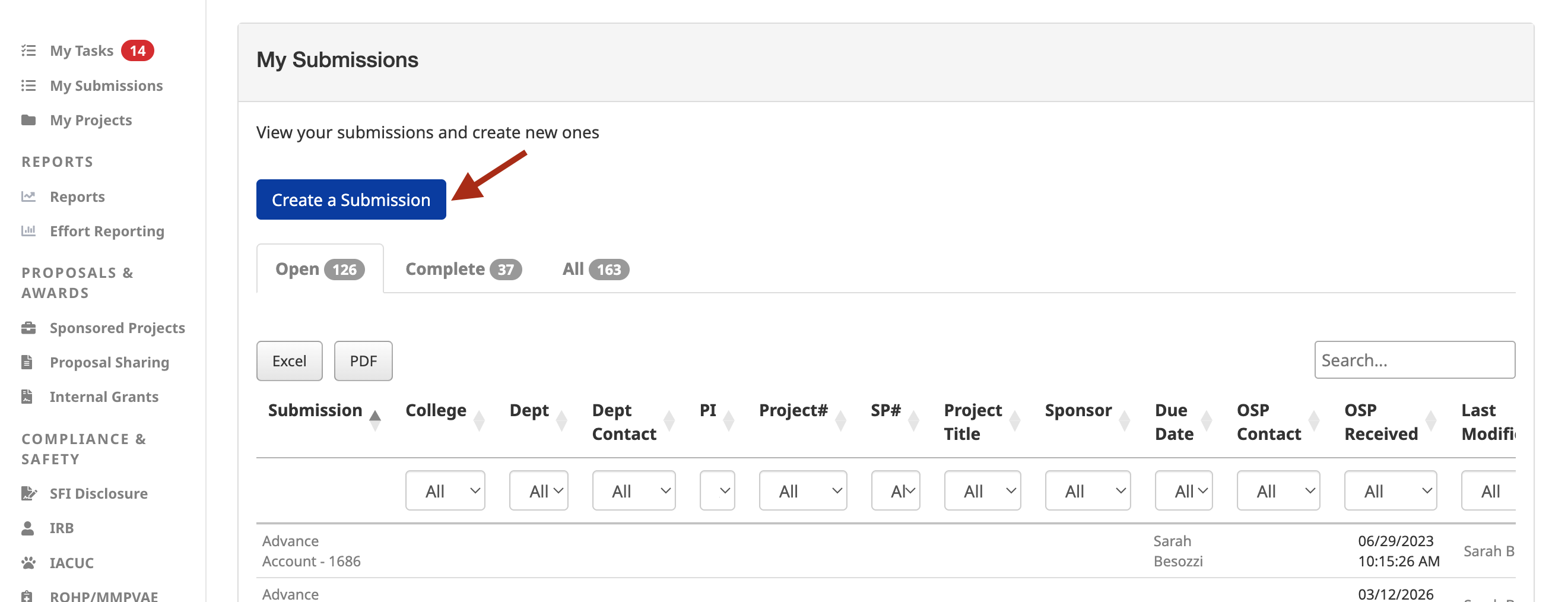
In the "My Submissions" view, select the "Create a Submission" button:
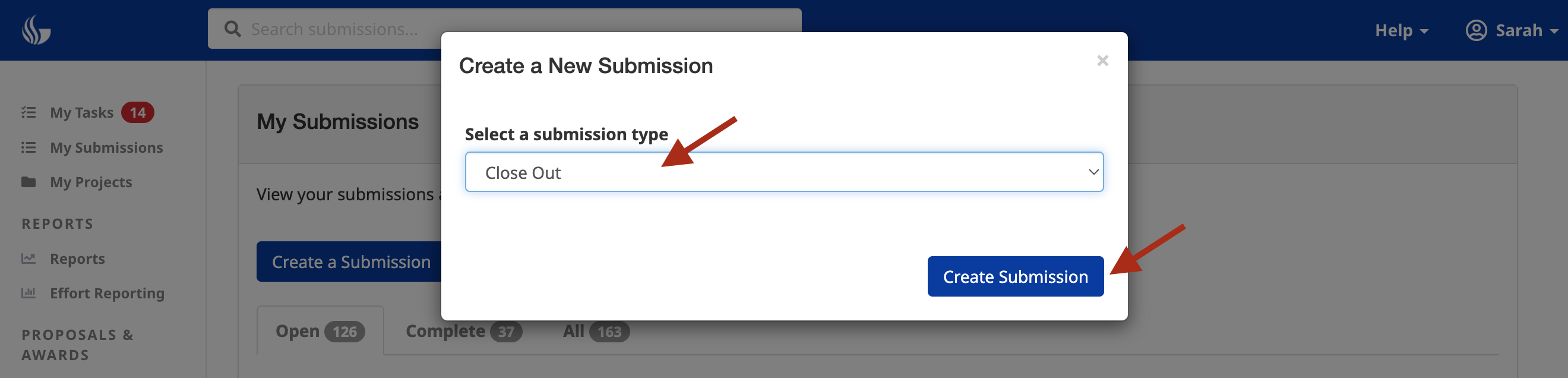
In the popup, select "Close Out".
Then select the "Create Submission" button and a new form will be created:
¶ Close Out Overall Workflow
- Award Info Tab - Completed by Grants and Contracts Officer (GCO). (Status: Draft)
- Pre-Close Out Tab - Completed by GCO 3 - 6 months out from project end date. (Status: Draft)
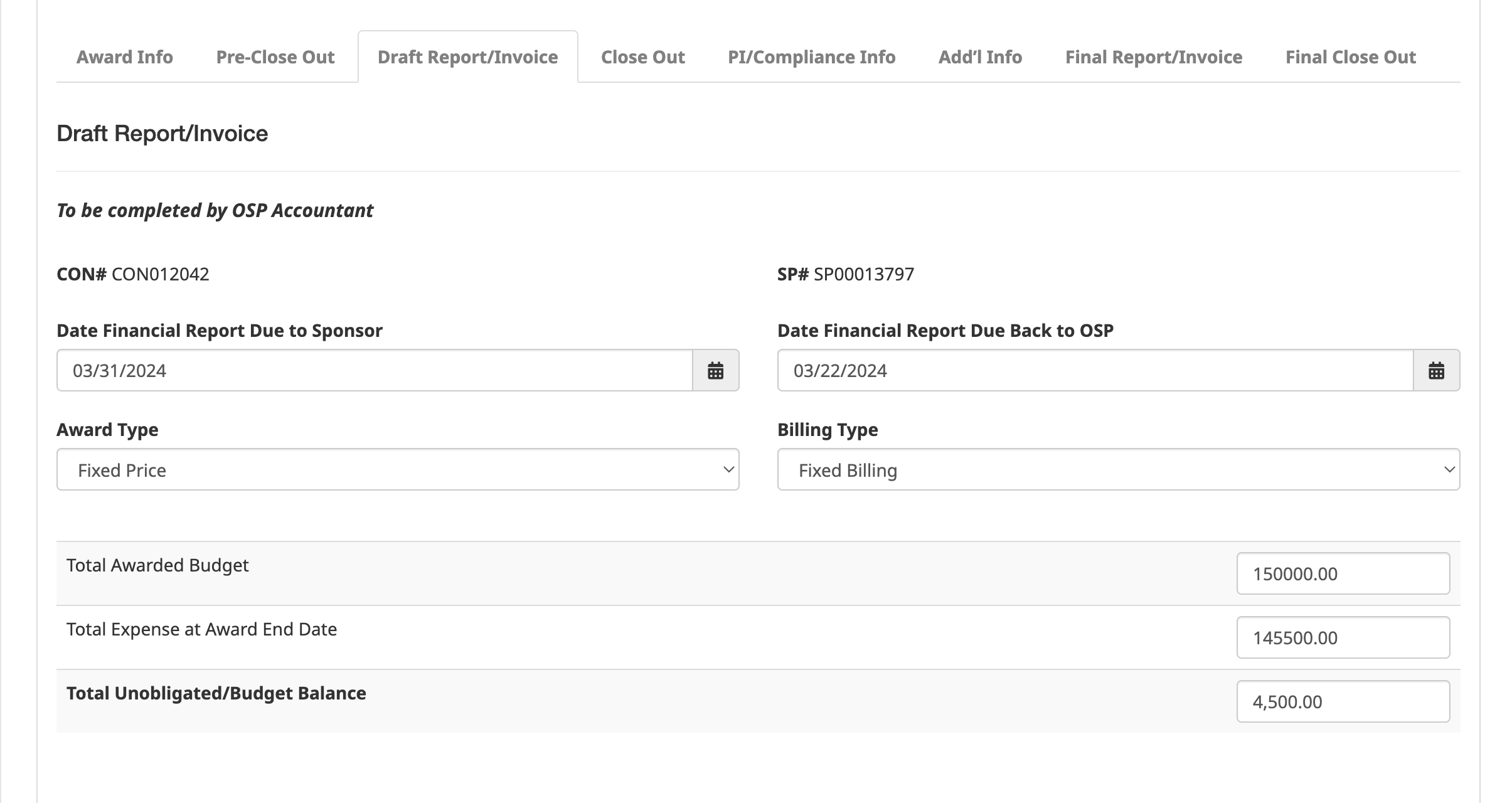
- Draft Report/Invoice Tab - Completed by OSP Accountant. Submits draft and GCO sent notification to submit to PI. (Status: Draft).
- Close Out Tab - Completed by the GCO and routed to the PI at least 5 business days before the date Financial Report is due back to OSP. Submits and sent to PI only after OSP has completed Draft Report/Invoice Tab. (Status: Draft).
- PI/Compliance Info Tab - Completed by PI. Submits and sent to OSP. (Status: Pending - PI Action)
- Add’l Info Tab - Comments for communication and additional uploads
- Final Report/Invoice Tab - Completed by OSP Accountant after OSP Preaward Contact completes the Preaward Close Out form (Status: Pending - OSP Action)
- Final Close Out Tab - Completed by OSP Accountant (Status: Pending - OSP Action)
¶ Award Info
To be completed by Grants and Contract Officer
Enter a Primary CON# to populate the fields.

Select the "Save and Continue" button to save and move to the next tab.
¶ Pre-Close Out
To be completed by Grants and Contracts Officer 3 - 6 months out from project end date.
The entered Primary CON# will populate all associated speedtype numbers and PIs.
Enter the Budget, Encumbrances, Direct Cost Balance and Indirect Cost Balance values.


Select the "Save and Continue" button to save and move to the next tab.
¶ Draft Report/Invoice
To be completed by OSP Accountant
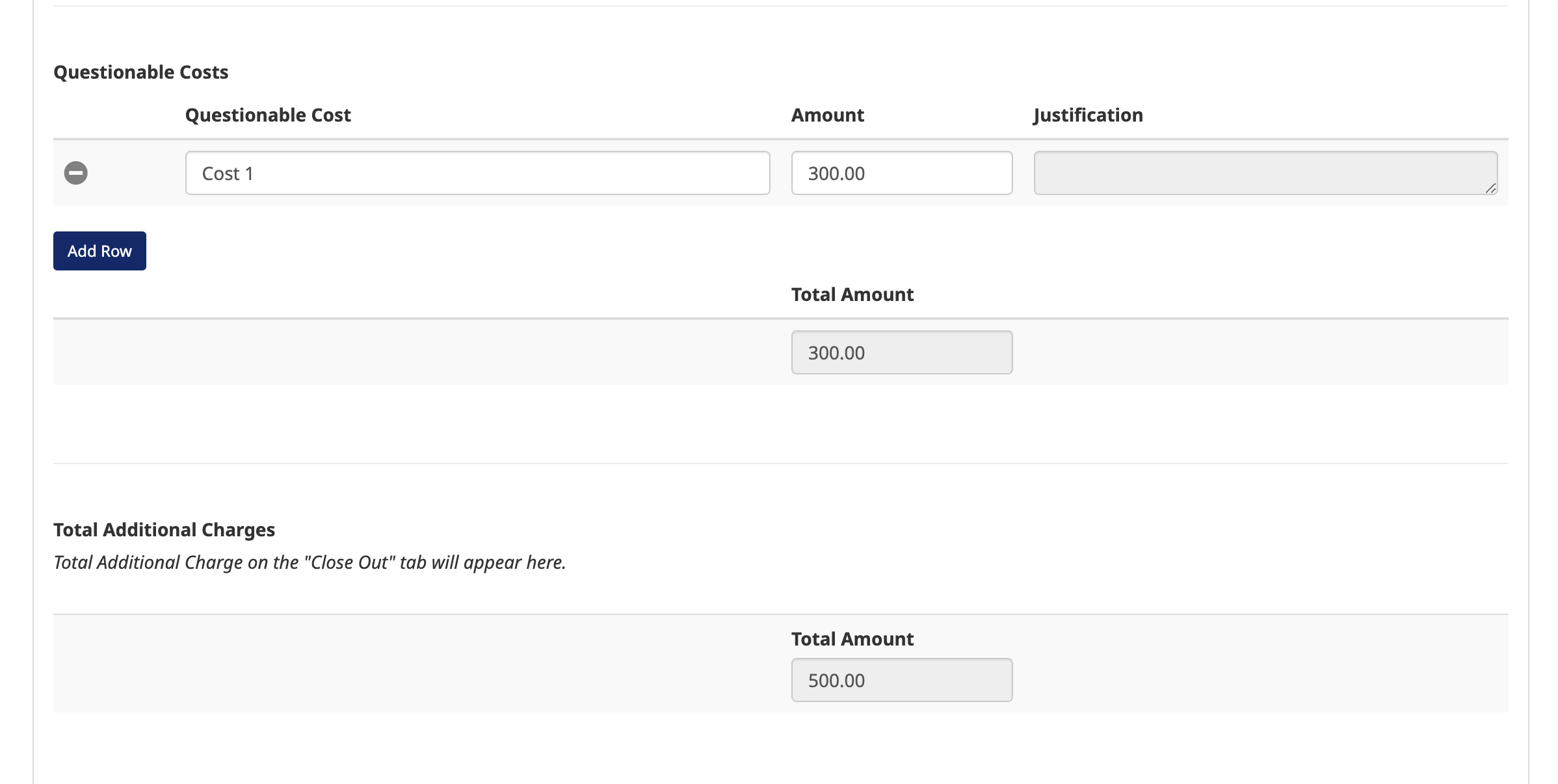
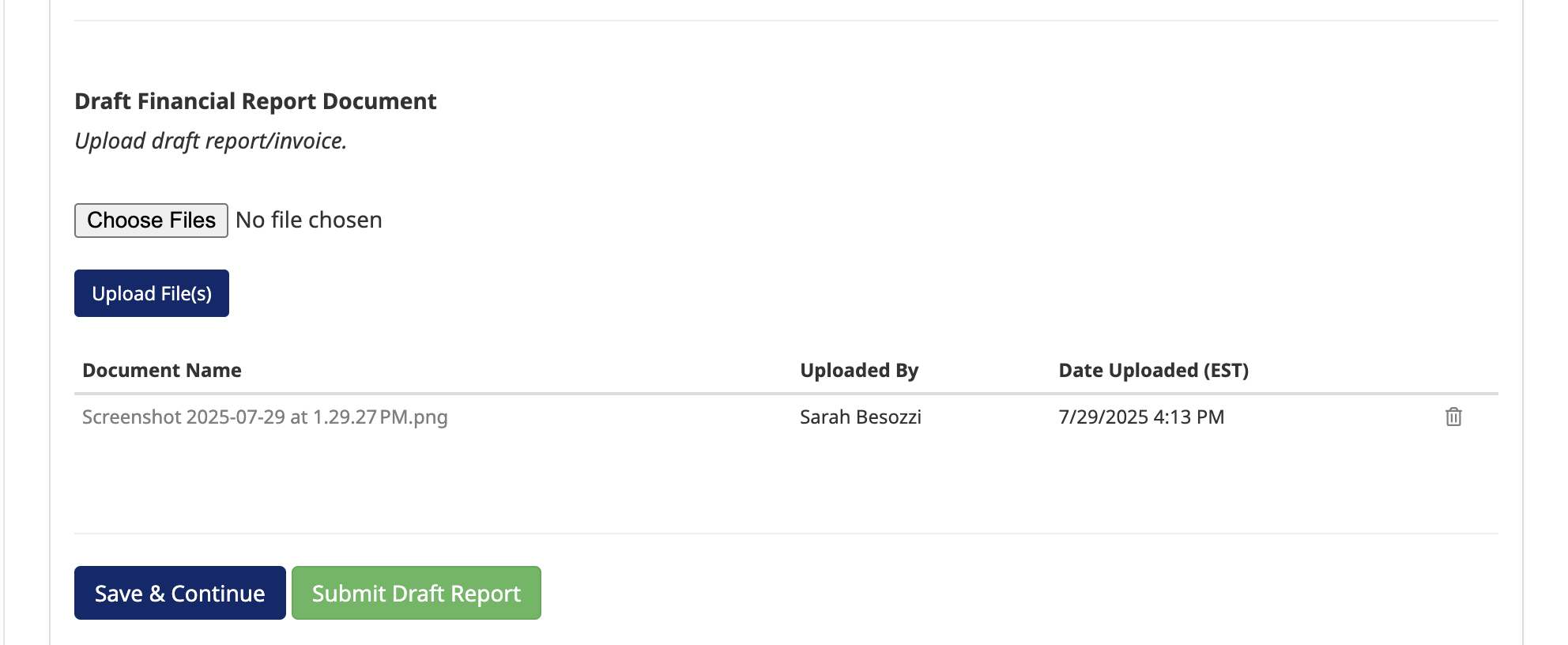
When complete with this tab, select the "Submit Draft Report" button:
- Email notification is sent to GCO notifying them to complete the "Cloe Out" tab and send to PI
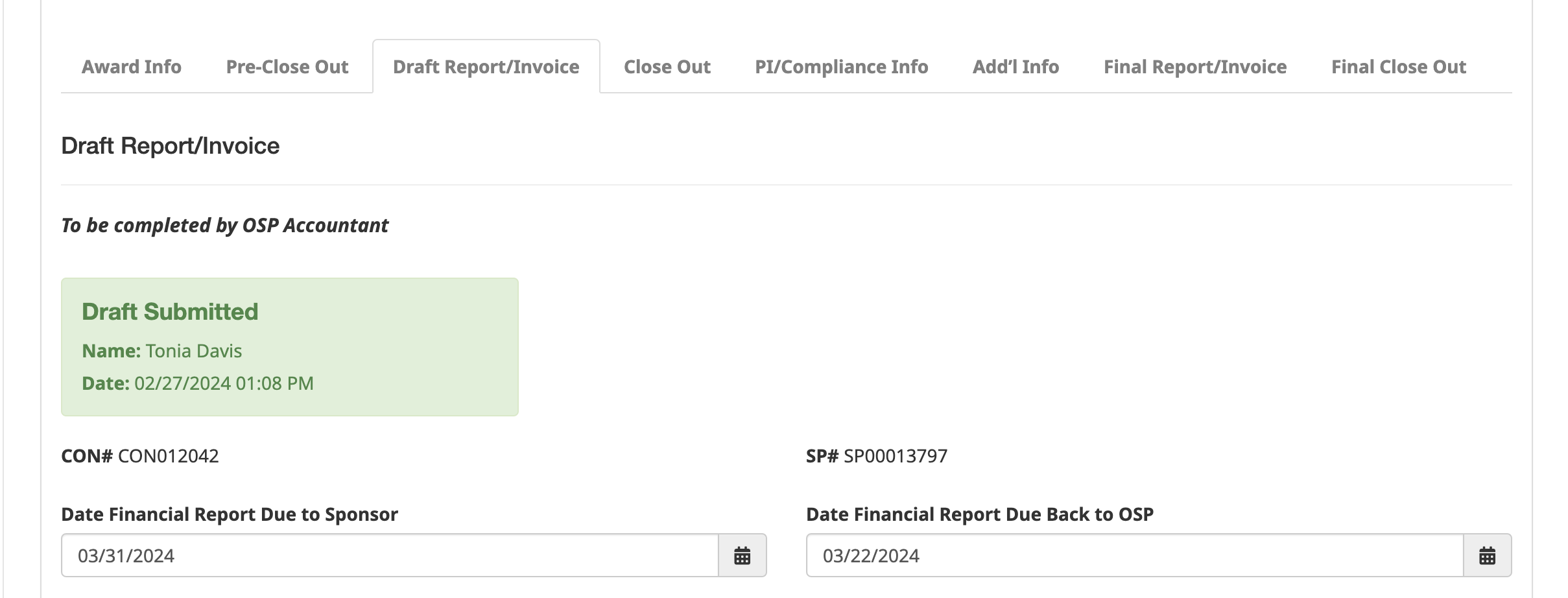
- Submittal information is added to the tab
¶ Close Out
To be completed and routed by GCO at least 30 days before final financial report is due to sponsor
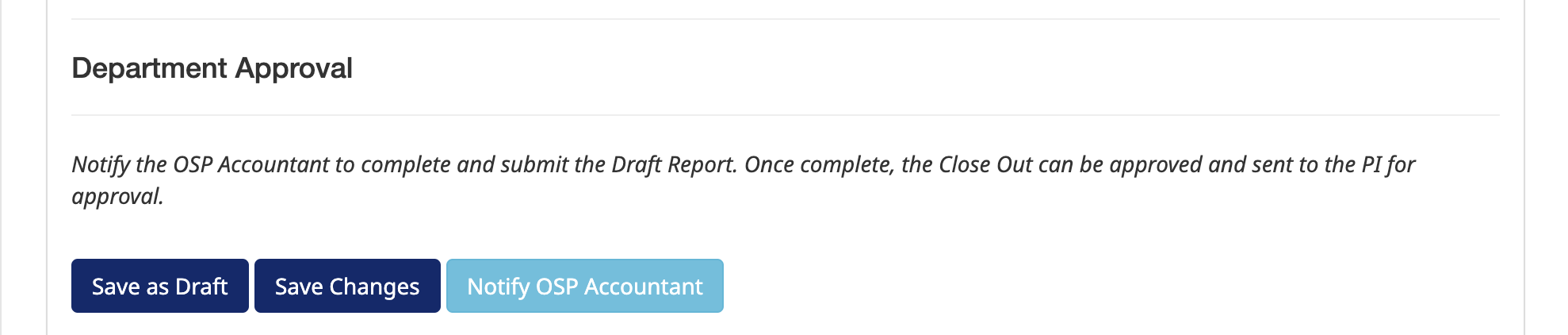
When complete with this tab, notify the OSP Accountant to complete the Report/Invoice tab by selecting the Notify OSP Accountant button.
- Note: This cannot be submitted until the OSP Accountant has completed this step.
Once the OSP Accountant has completed the Report/Invoice tab, select the "Approve & Send to PI" button:
- Status updates to “Pending – PI Action”
- Email notification sent to PI requiring them to review the Close Out form and complete the "PI/Compliance Info" tab


¶ PI/Compliance Info
Completed and routed to OSP by the PI
PI completes the steps below:
- PI reviews all data entered for accuracy in the Close Out form
- Verify they have completed and reviewed all data on the "PI/Compliance Info" tab by answering all questions.
- If the answer to the question "Has the final technical and/or other reports required for close out been sent to the sponsor per the terms and conditions of the award?" is "Yes", you must upload the report in the upload "Technical/Programmatic Reports" section.
- The PI can approve or return to the department for corrections


-
To save and approve::
- Select the "Approve & Send to OSP" button
- Status updates to “Pending – OSP Action”
- Email notification is sent to OSP requiring them to complete the "Final Report/Invoice" and the "Final Close Out" tabs

- Note: After approval, a seperate Preaward Close Out form is automatically created and assigned to the OSP Preaward Officer and linked to the parent form.
-
If any issues are found:
- Return the submission to the GCO by selecting the "Return to Dept" button
- In the pop-up, fill out the information requested from the department
- Status updates to “Returned to Department"
- The department will be notified of requested corrections


¶ Additional Info
- Upload any additional documents
- Use the Comments section to communicate with other people working on this submission.

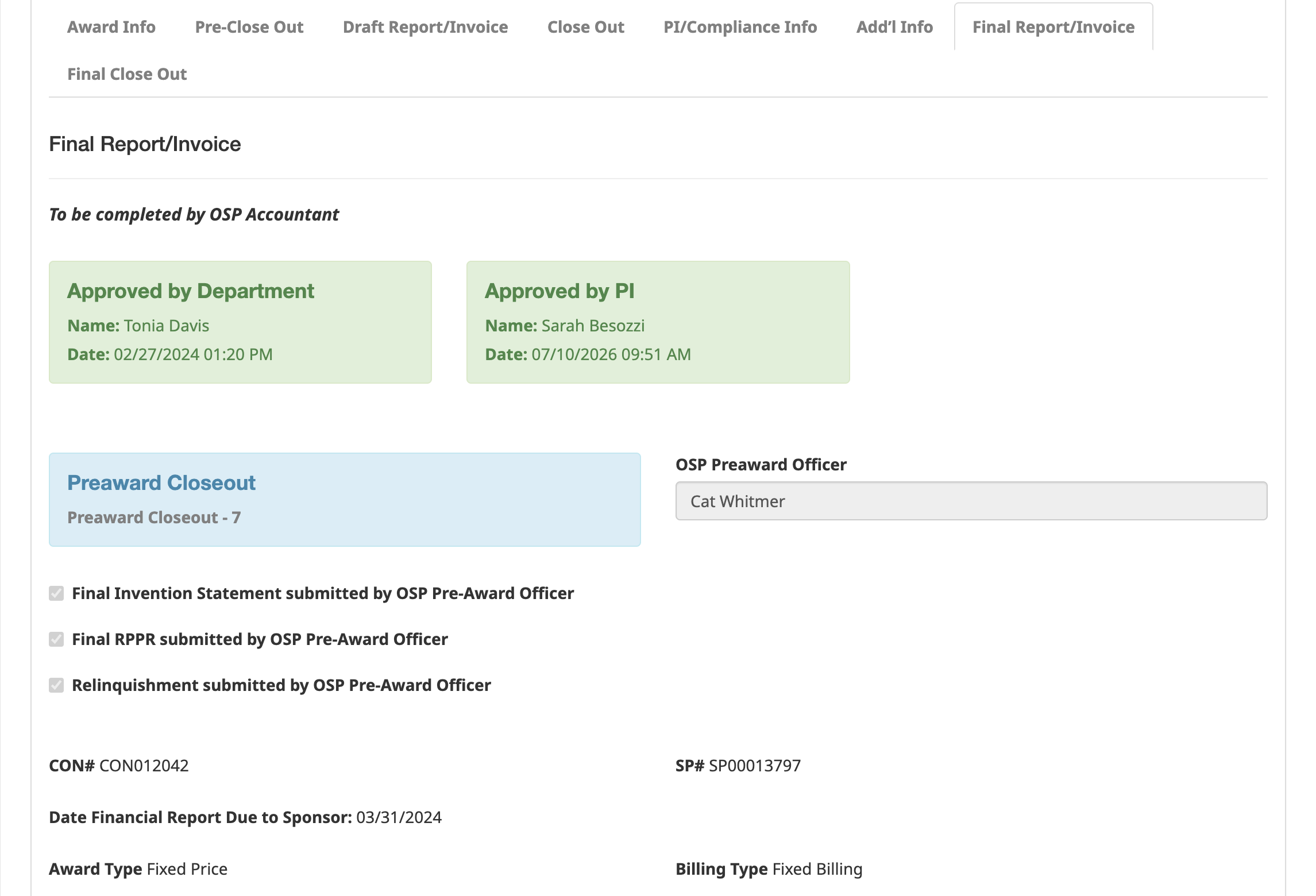
¶ Final Report/Invoice
To be completed by OSP Accountant
Upload the Final Report here and complete the fields.
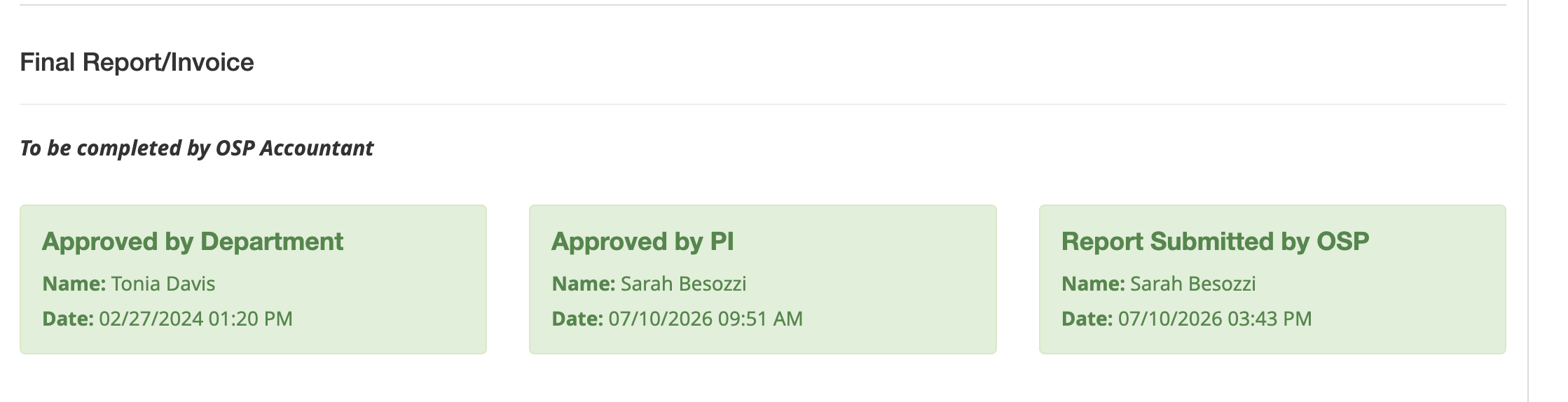
As each person approves, the approval will show at the top of this section including name and date of approval:
- Approved by Department
- Approved by PI
The link to the Preaward Close Out form and the assigned OSP Preaward Officer show here and pulls in their checklist. OSP Preaward Officers can see the How to Complete a Preaward Close Out guide for steps to complete the form.
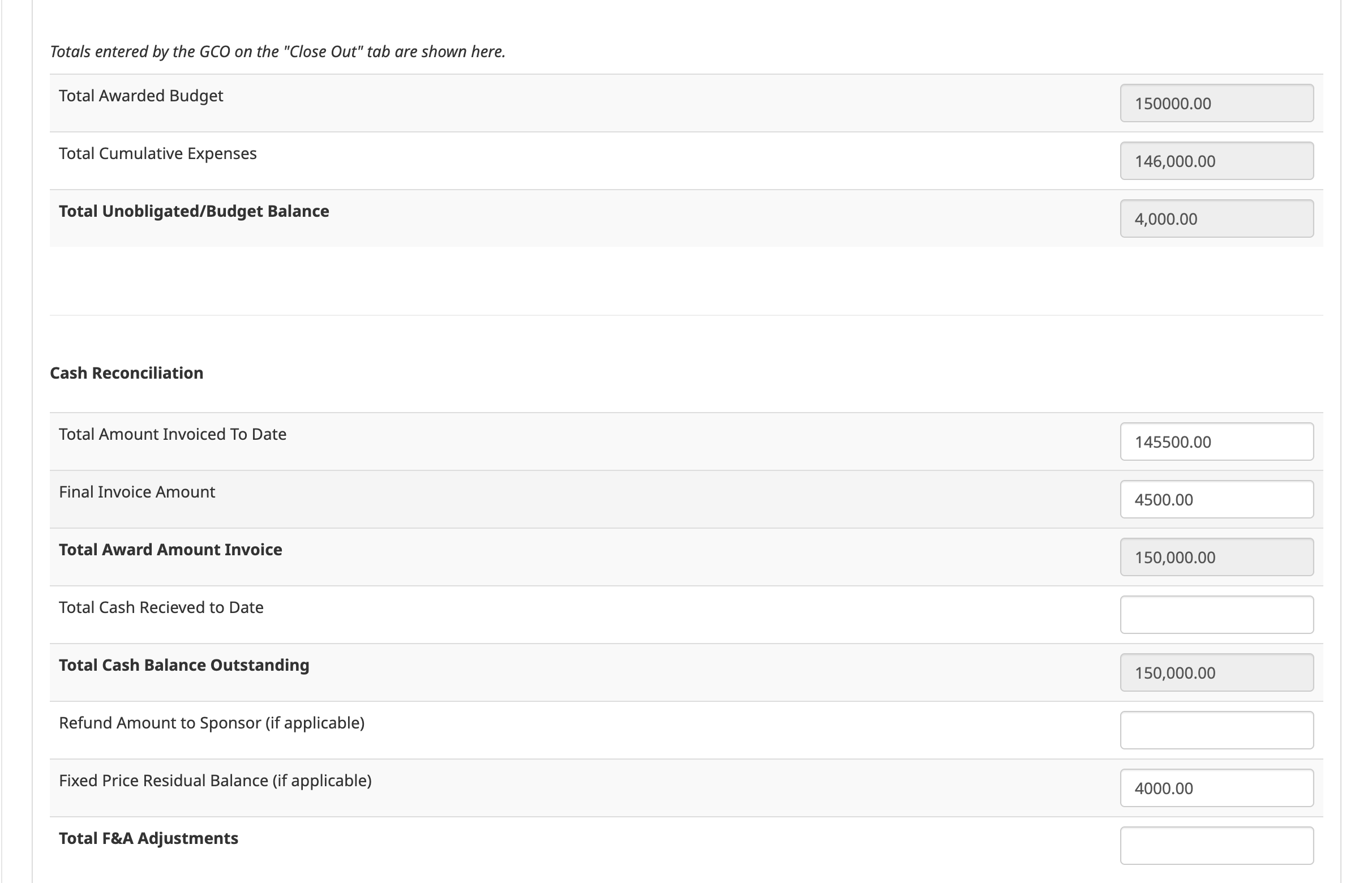
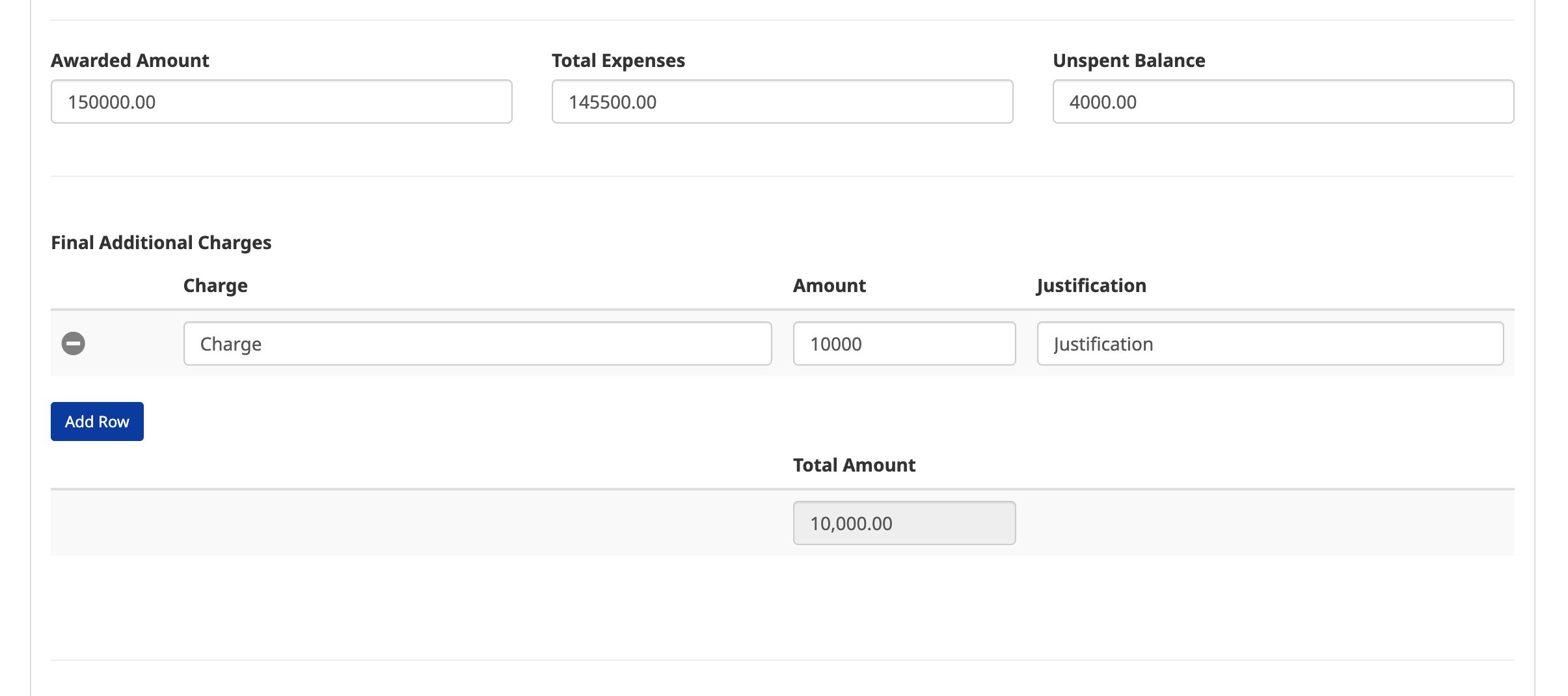
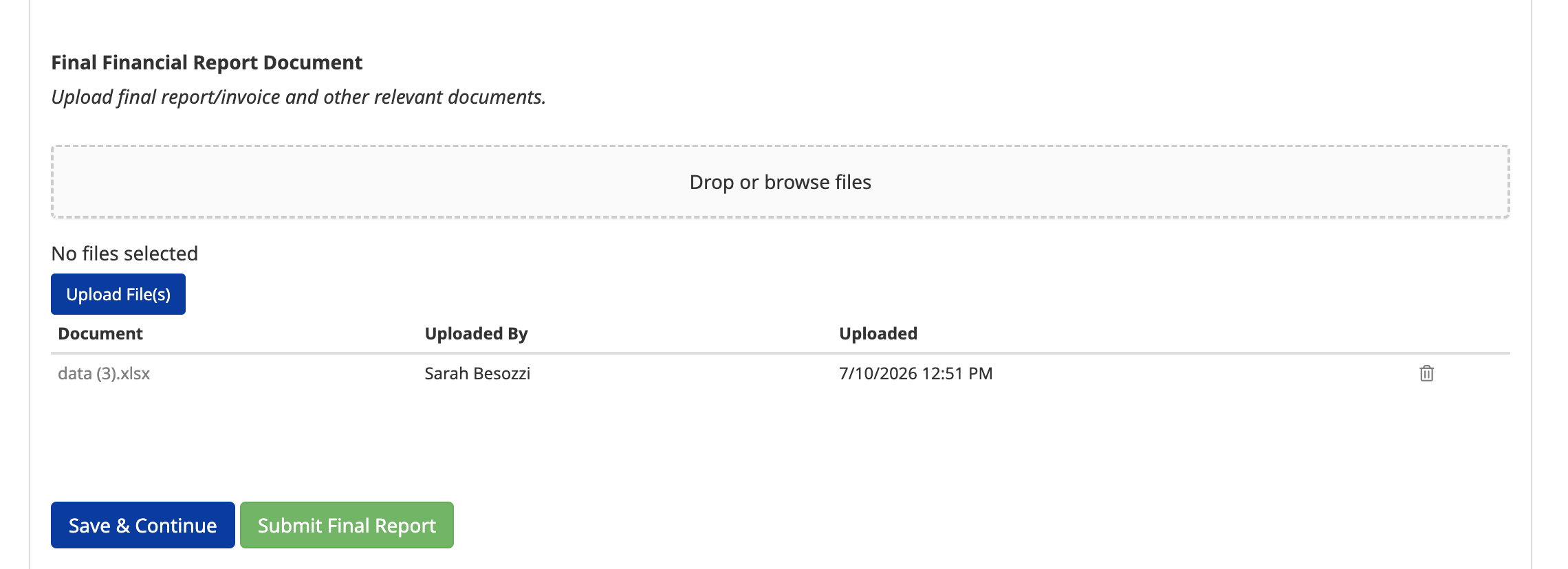
When complete, select the "Save and Continue" button to save and move to the "Final Close Out" tab.
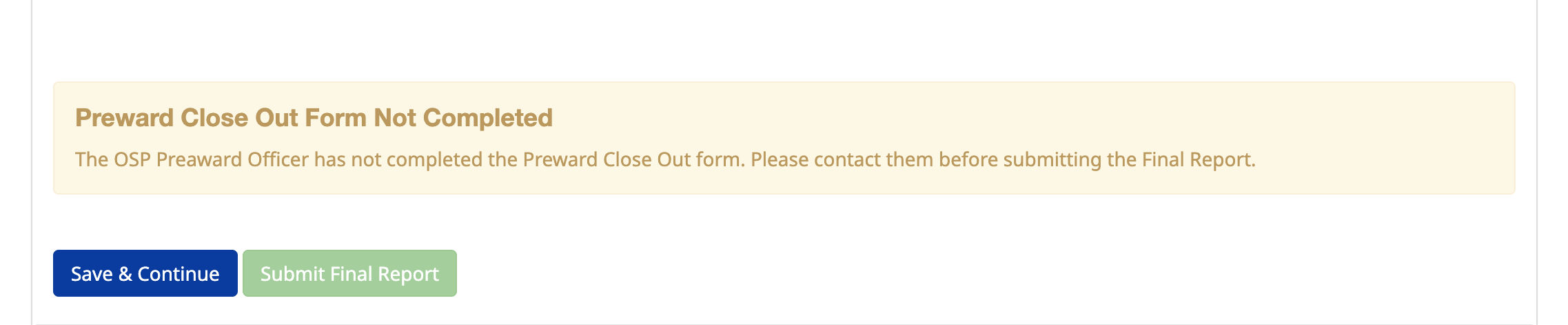
If the OSP Preaward Officer has not completed the Preward Close Out form, the Submit Final Report button will be disabled. The OSP Accountant should contact them before submitting the Final Report.
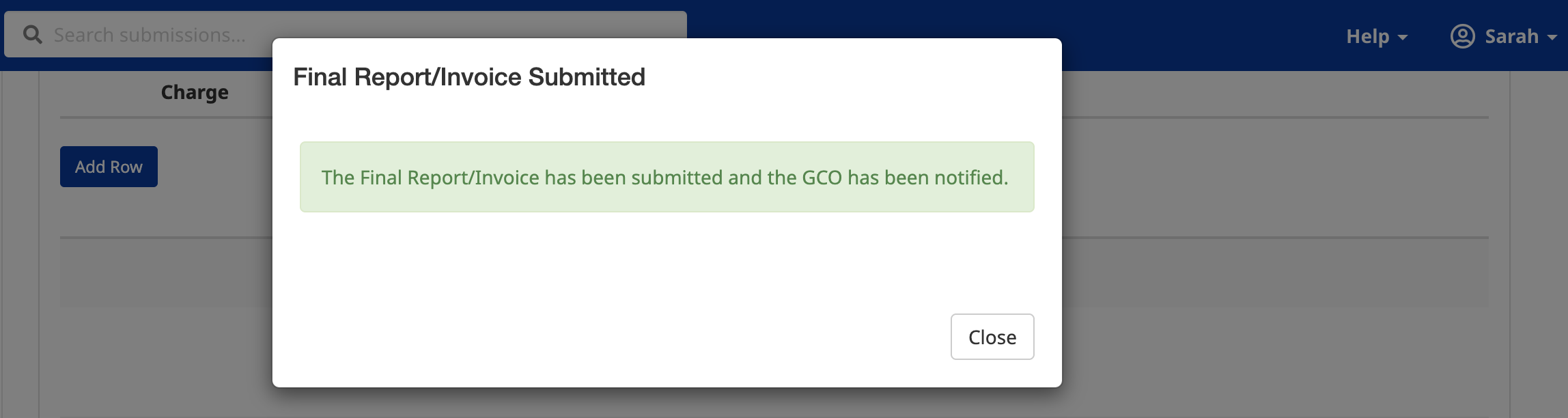
After submitting the Final Report, a confirmation message will show and the summbittal will show in the top of the tab.
¶ Final Close Out
To be completed by OSP Accountant after completing Final Report/Invoice
OSP reviews all tabs on the Close Out form and fills out "Final Close Out" tab.


To approve and complete:
- Select the "Complete" button.
- An email notification will be sent notifying PI, Department Contact, Department notification list, and Created By of approval


Once complete, all approvals will show in the Final Report/Invoice tab.

¶ View History/Export to PDF
Select the "Submission History" button to see a running history whenever someone updates the form.
Select the "Export to PDF" button to export a PDF file.

Need more help? Please contact OSP directly or reach out to us at Research Solutions.