¶ Create a Budget Template
¶ Create the Budget Template Excel Document
-
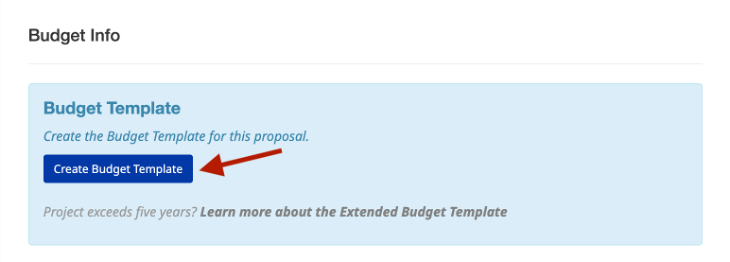
To create the Budget Template, select the Create Budget Template button. This will automatically create the Excel document for you.
-
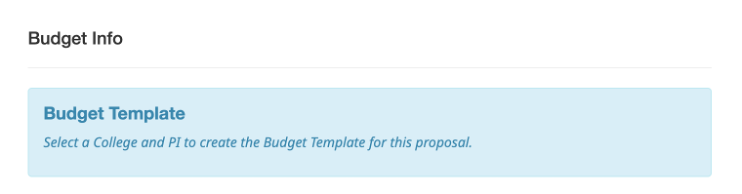
- Required Fields: If you have not yet selected the College and PI fields in the GSU Info tab, the message below will show. Go back and make selections for these fields
- Note: If the project is more than five years, then view the details for this option by visiting the Projects With More Than Five Years section of this guide for further instructions.*
¶ View/Share/Manage Document
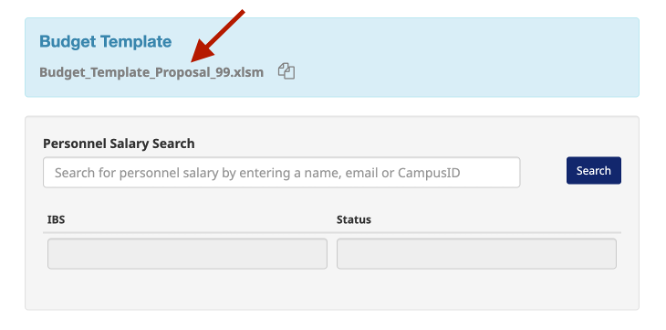
- After the Budget Template document is created, the document name and link will show. See the details on how to view, share, and manage the document.
¶ View the Document
-
The selected College's GCO Admins and the PI will have view/edit access. They can assign access for additional people if needed.
-
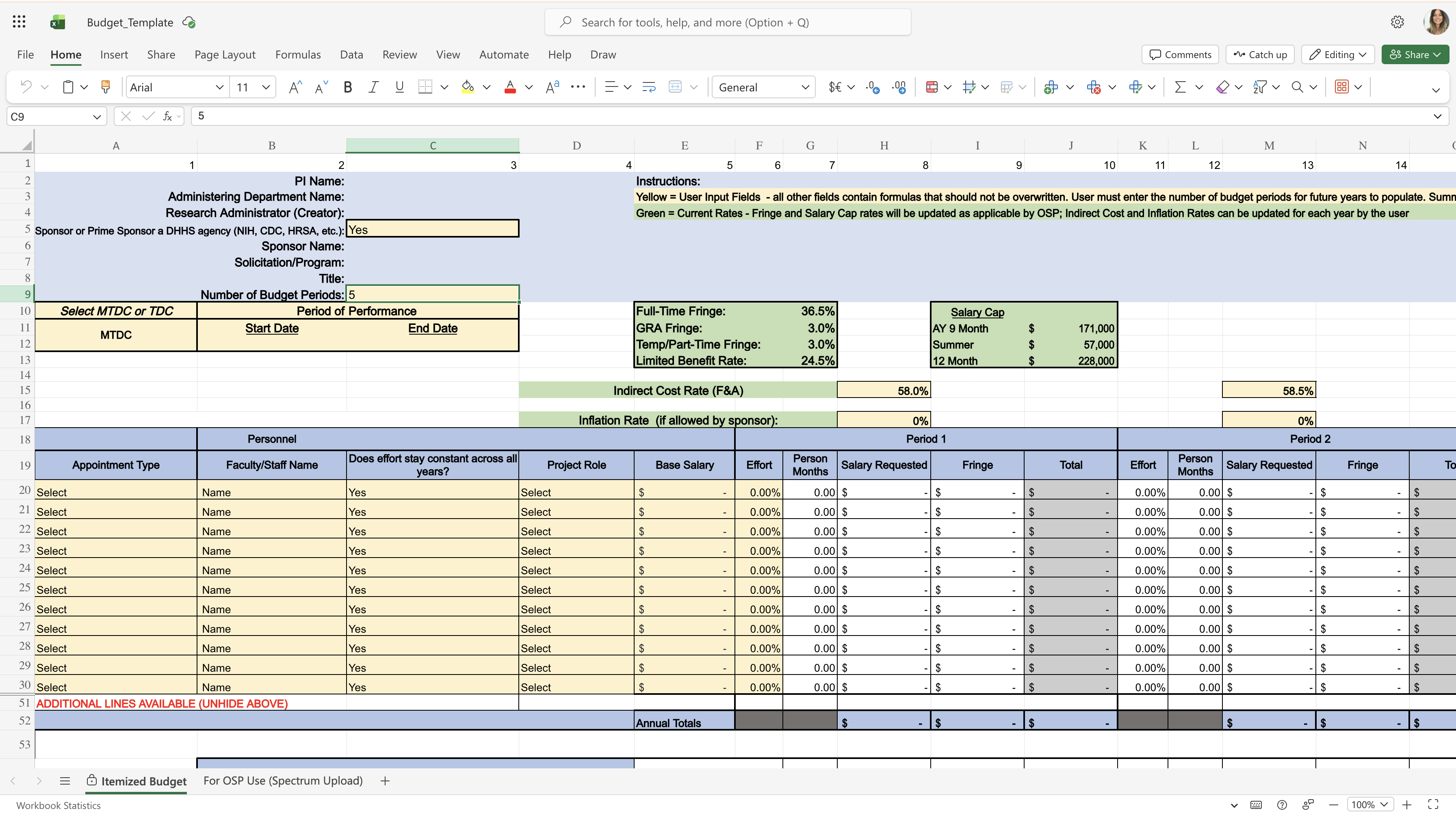
Select the document name to view and edit the doucument. A new browser tab will open with the Budget Template Excel document.
-
Select the copy icon to the right of the document name to copy the URL to your clipboard and share with other team members.
-
The Salary Search section will also show. Use the search to find personnel salaries to add to the Budget Template's Personnel section.
-
-
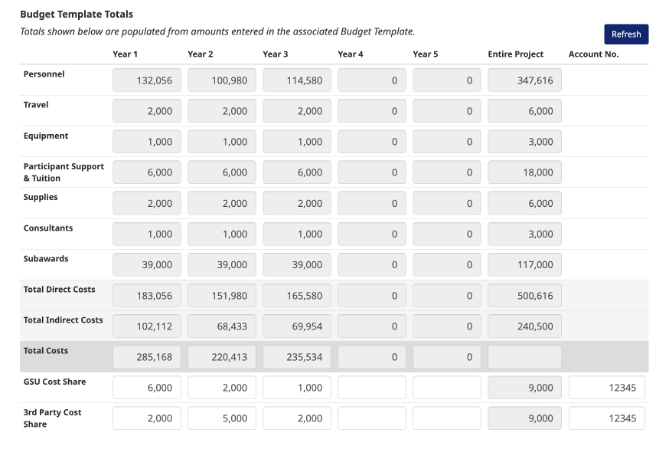
Totals entered in the Budget Template Excel document online will pull directly into the Budget Template Totals section.
- Use the Refresh button to pull in any changes you make to the Budget Template document.
-
-
¶ Share the Document
-
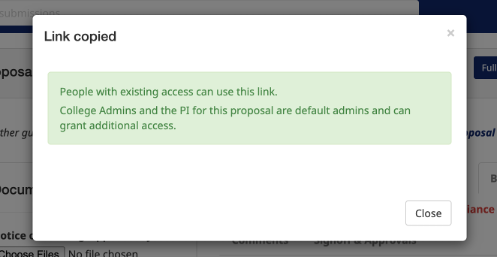
Users have the ability to copy the link to share with other users that have been granted access. See below on how to grant additional access.
-
Select the copy icon next to the document to copy to your clipboard to share with people who have access.
-

¶ Document Location
-
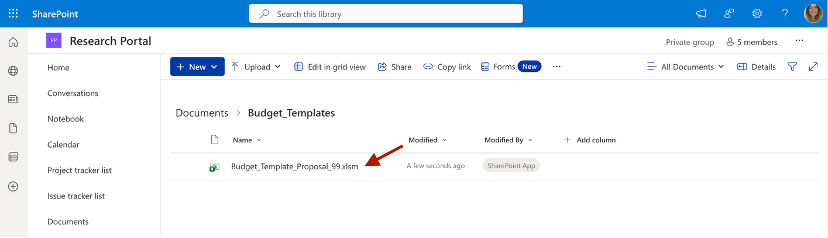
The document is housed in the Research Portal SharePoint site online. This is what Teams is built on and functions the same way as viewing document in Teams online.
-
This allows multiple people to access a shared Excel Online document without having to send separate Excel documents as email attachments.
-
-
¶ Manage Access
-
The selected College's GCO Admins and the PI have the ability to grant additional access to other users.
-
To grant access to additional personnel, open the document online with the link in the Proposal form.
-
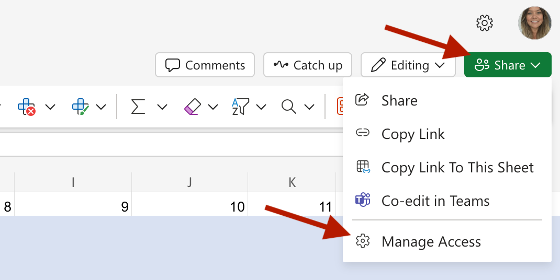
Select the Share dropdown menu in the top right corner, then select the Manage Access option.
-
-
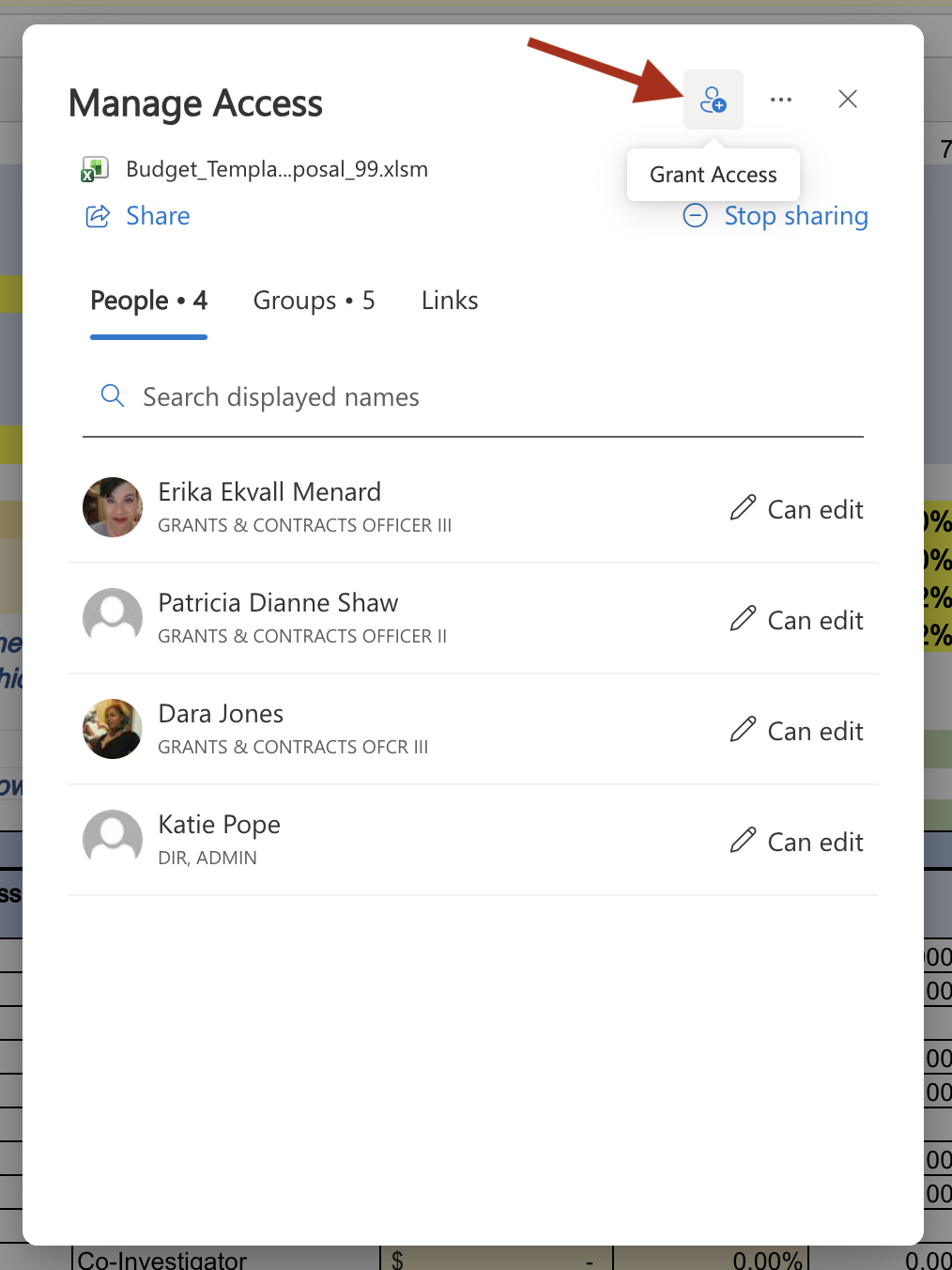
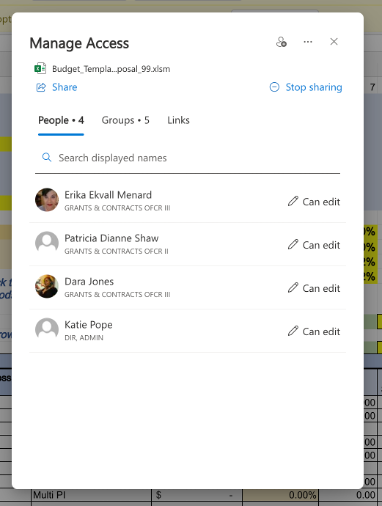
In the Manage Access popup, you'll see the list of people who have access to this document. To add additional people, select the Grant Access icon in the top right corner.
-
-
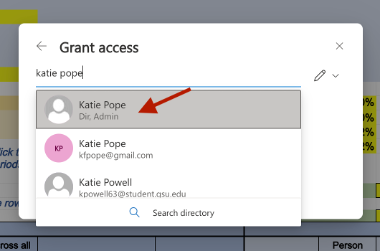
In the Grant Access popup, enter the person's name in the search
field. Select the name from the results list. -
-
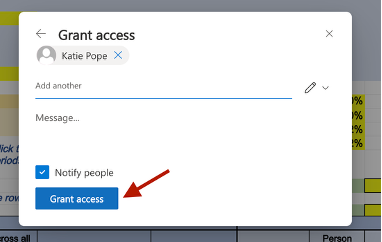
Select the Grant access button.
-
-
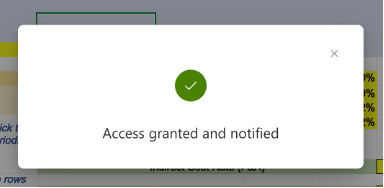
You'll get a notification that access was successfully granted. An email notification will be sent to the person to let them know.
-
-
¶ Projects With More Than Five Years
-
The Extended Budget Template is intended only for projects that exceed 5 years.
-
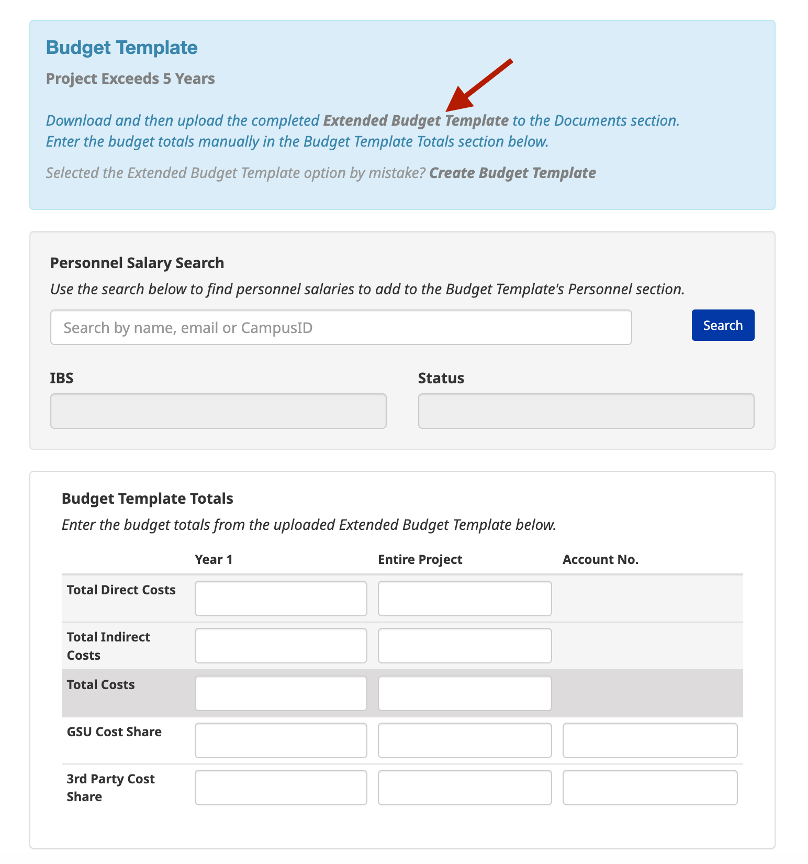
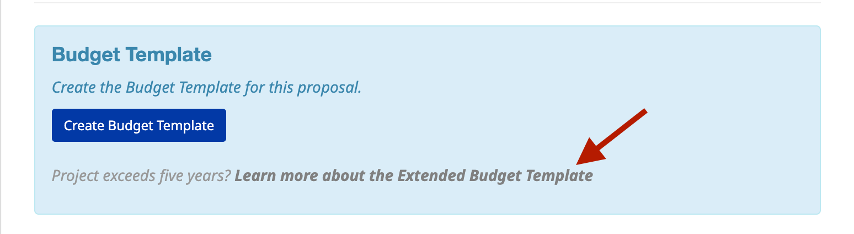
If your project is 5 years or more, you can use the Extended Budget Template option by selecting the Learn more about the Extended Budget Template link.
-
-
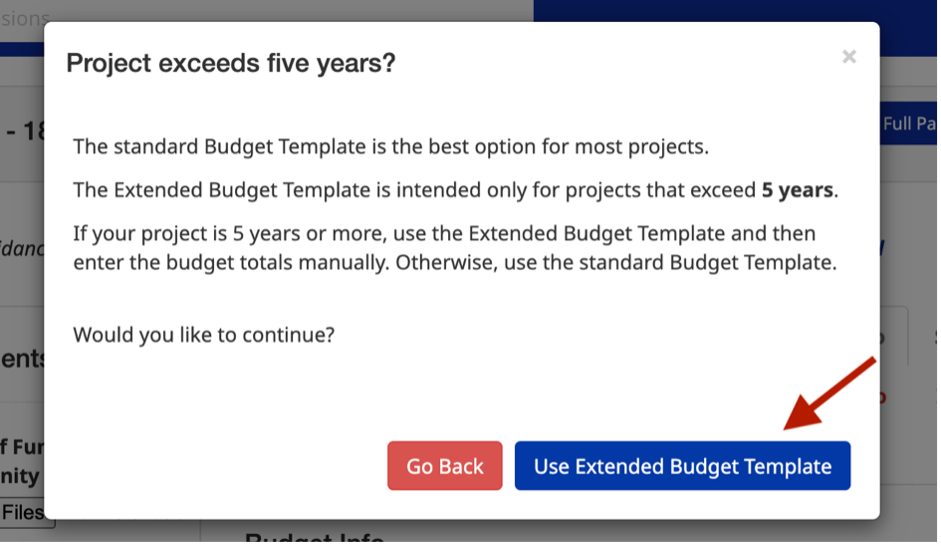
To use the Extended Budget Template option, in the popup, select the Use Extended Budget Template button.
-
-
Download the Extended Budget document by selecting the link and then upload the completed budget to the Documents section.
-
Manually fill out the totals for Year 1 and the Entire Project in the Budget Template Totals section for review.
-